

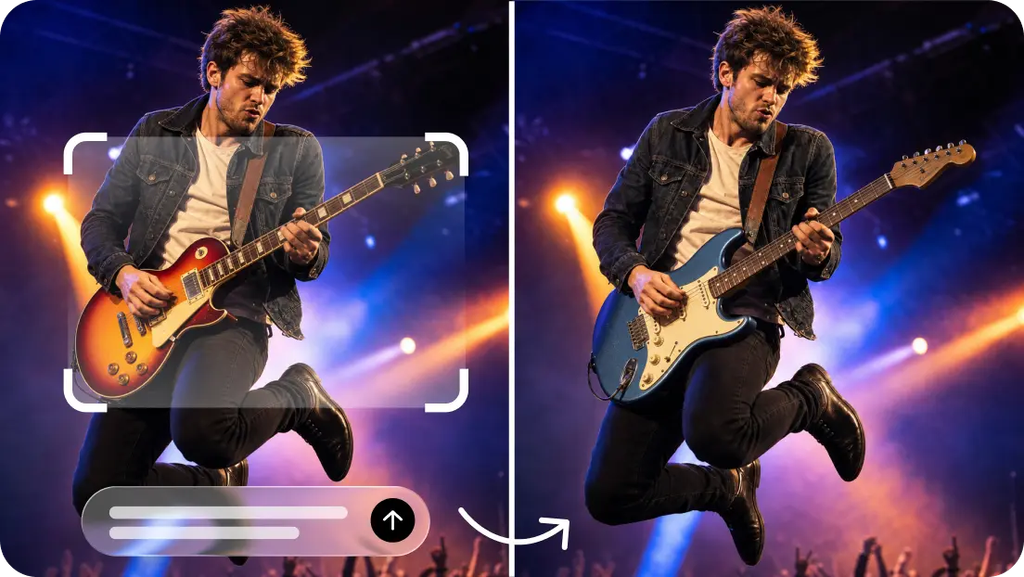
Natural, consistent movement and visual consistency between frames are key to creating convincing AI videos. These include flickering textures, varying shapes of objects, bent arms and legs, and wavy backgrounds. These motion inconsistencies cannot be corrected with increasing resolution alone. Dreamina AI offers video production and video editing solutions that assist video creators in creating and enhancing scenes with movement. It has models for video creation, called “Seedance”, which feature better motion control and character consistency. But outcomes remain dependent on timely clarity, complexity of the scene, references provided, and model restrictions. Knowing these things will allow you to make better, more coherent clips and know what to look for in trouble spots before export.
Understanding the Most Common Motion Glitches in AI-Generated Videos
Motion glitches are artefacts that happen when the generated elements change out of nowhere or move in a way that is not consistent from frame to frame. Temporal flicker is when brightness, textures, or small details vary during playback. Shape distortion is the change of proportions of objects or body parts as they move. Limb differences can result in unnatural joints, off-center hands, or unnatural gaits. Background instability results from unexpected movement of stationary furniture, buildings, or landscape. Object interaction errors occur when hands don’t move in a natural way with objects. Panning or tracking shots may add warping due to camera movement. These problems can stem from unclear instructions, conflicting actions, model features, or occlusion. While prompting can help reduce artifacts, Dreamina AI will not be able to remove all of them.
Why Better Motion Instructions Produce More Coherent Visual Sequences
Detailed movement directions provide Dreamina AI to convert text to video with a better sense of direction. Determine the subject, the starting point, the direction of movement, the speed of the movement, and the target of the movement. Do not give subject and camera movement together, as this can result in mixed messages. Independently describe environmental behaviors, e.g., leaves move around while buildings are not. Have fewer simultaneous actions when consistent movement is more important than complexity. Be consistent with the lighting and visual style in the prompt. So, for instance, instead of “a person walking in a city,” use “a person walking steadily down a city sidewalk, with natural arm swings, and consistent attire, with the camera moving slowly. This description has clearer movement, appearance, and camera behavior. Specific instructions enhance the creative control, but it is possible that results of generation may differ.
Steps to Enjoy Smoother Motion and Fewer Glitches With Text-to-Video AI
Step 1: Open Dreamina and describe the motion you want
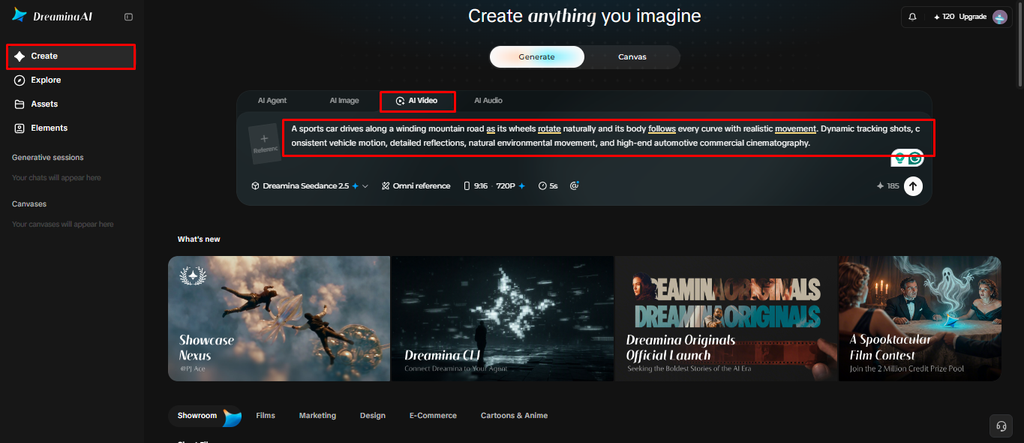
- Sign up or log in to Dreamina to start creating smooth video from text today.
- Go to the “Create” tab from the left menu and select the “AI video” option.
- Write a detailed text prompt on how you want the video to look and feel. Describe video elements, sound, background, theme, and concept, plus exactly how each subject should move.
Step 2: Choose a model and settings for steady results
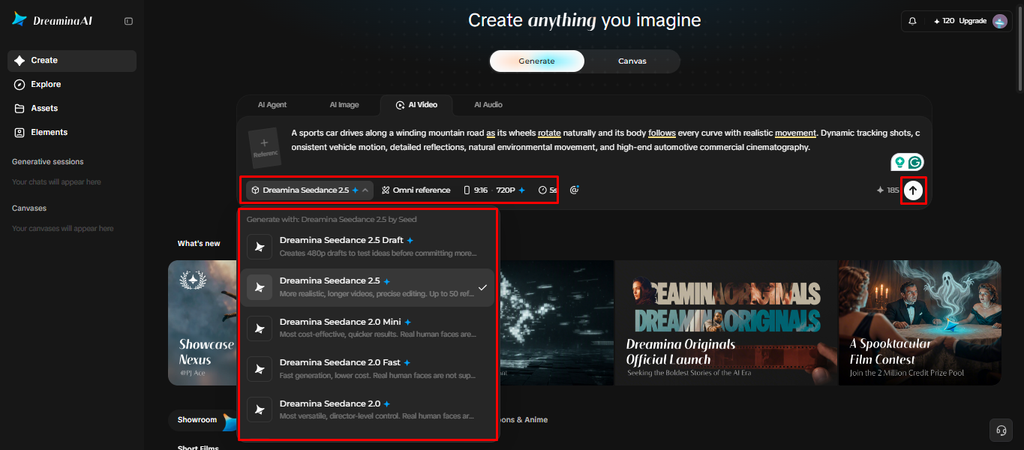
- Next, choose a model from the options present at the bottom of the dialogue box.
- Models include Dreamina Seedance 2.5, Dreamina Seedance 2.0, and Dreamina Seedance 2.0 Fast, plus more. Dreamina Seedance 2.0 Mini and Dreamina Seedance 1.0 are also there for steadier, simpler clips.
- Click “Omni reference” and add multiple reference images so the AI produces accurate video results.
- Select the custom aspect ratio and resolution using the “Aspect ratio” and “Resolution” tabs available.
- Finally, click the “Generate” tab to begin creating, then watch the motion closely for flaws.
Step 3: Fix flaws and export the final clip
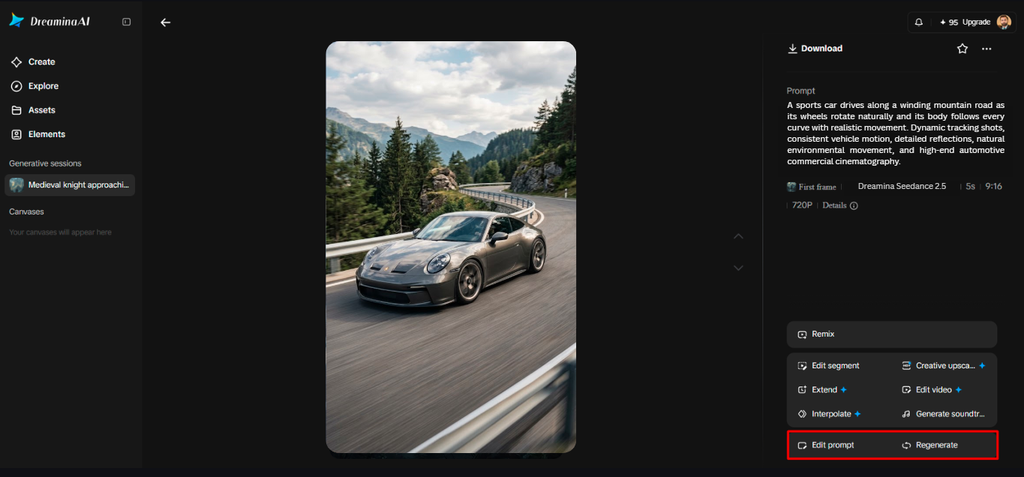
- If you dislike the results, use “Edit prompt” or “Regenerate” to refine the motion.
- You can also edit the generated video with the “Edit video” option for small fixes.
- Use “Edit segment” to edit only the part of the video that looks slightly off.
- Lengthen your video with “Extend video” or improve its quality using “Creative upscale” for clarity.
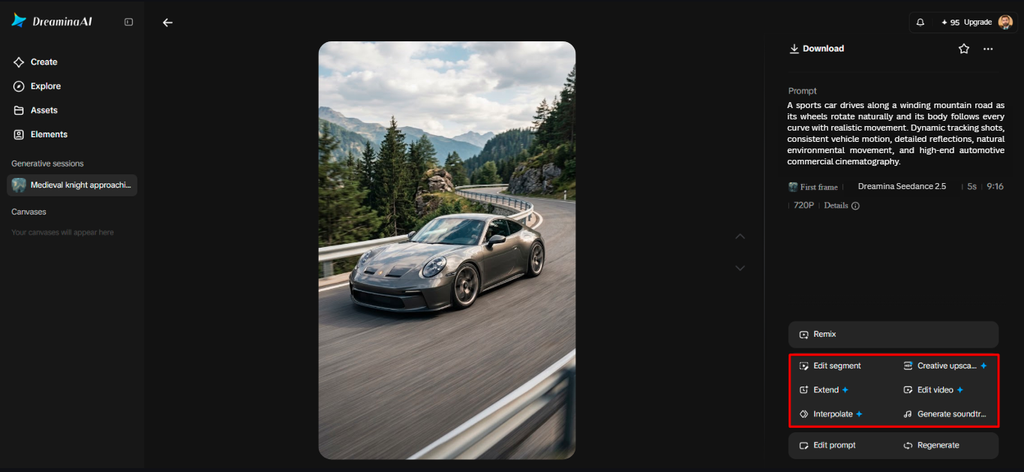
- Dreamina gives you complete freedom to edit your video exactly the way you like it.
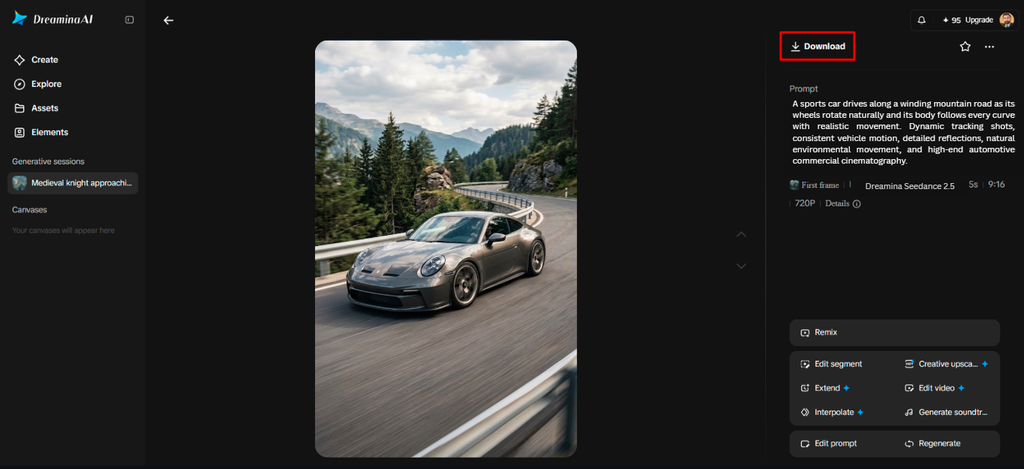
- Click the “Download” tab at the top right to save the video on your device.
Techniques for Improving Motion Consistency With Dreamina AI
There are some useful methods that can minimize the ambiguity of prompts and promote more coherent prompted movement.
- One Dominant Action: Keep the prompt focused on one main action and then add in the secondary actions.
- Clear Movement Direction: State if the subject walks forward, turns left, reaches up, or walks backward.
- Stable Character Details: Talk about the same clothing, hairstyle, body proportions, and accessories in the scene.
- Controlled Camera Behavior: Ask for a still shot, slow pan, or measured tracking move with no conflicting requests.
- Useful Visual References: When appearance and/or spatial layout is important, add appropriate reference images via supported controls.
- Targeted Revision: Do not need to rewrite the whole prompt; need to change that one movement.
These are some techniques that help Dreamina AI understand creative direction better. But the generated motion is ultimately dependent on the model used, and results must be checked and sometimes regenerated.
How to Diagnose and Refine Glitches Without Starting Over
Start by watching the whole clip at a normal speed to look for distracting issues. Identify if the problem is with a character, with an interaction between characters and objects, with the background, with the camera movement, or with the transition. Test possible corrections one important prompt detail at a time. This way, it is easier to determine which teaching leads to a better outcome. Use localized editing if tools are available for editing of the impacted element or segment. When the main action or composition of the scene is basically flawed, regenerate the scene. After each revision, view the whole clip again and look for inconsistencies introduced by the revision. Not all frame-level errors can be identified or fixed, and new generation may be necessary for some scenes.
Evaluating Motion Quality Beyond Smooth Playback
Convincing video generated by AI does not necessarily equal smooth playback. Test anatomical plausibility by considering body proportions, position of joints, and movement of limbs. Look for flickering textures, sudden changes in brightness, or loss of detail over time. Verify spatial continuity, ensuring consistent and convincing spatial positions and relationships for objects. Make sure that the gestures have sensible end points and not sudden jumps or unexpected turns. Evaluate the cohesiveness of the camera to make sure that framing is not distracting or warping while still supporting the action in the shot. Lastly, check resolution and detail at the desired playback size. While Dreamina AI can create detailed visuals, there are still aspects of resolution and the quality of the movement to consider. Knowing what to look for all at the same time is a good way to be able to determine whether the footage is actually coherent or if it looks smooth.
Conclusion
Dreamina AI provides valuable features for creating and editing scenes with motion. Creative direction can be enhanced by descriptions of action, direction of camera, and appropriate references to the action. Inconsistencies can be detected before exporting by targeted edits and systematic inspections. However, there can be visual artifacts with complex movements and interactions. Carefully test and combine realistic expectations for more coherent results. In the end, careful guidance and improvements transform the first drafts created by the AI into compelling visual narratives.

